

Plan & Schedule Facebook Content With a Visual Calendar
See what is scheduled, what has already published and what was deleted — then create your next Post, Reel or Story directly from the calendar.
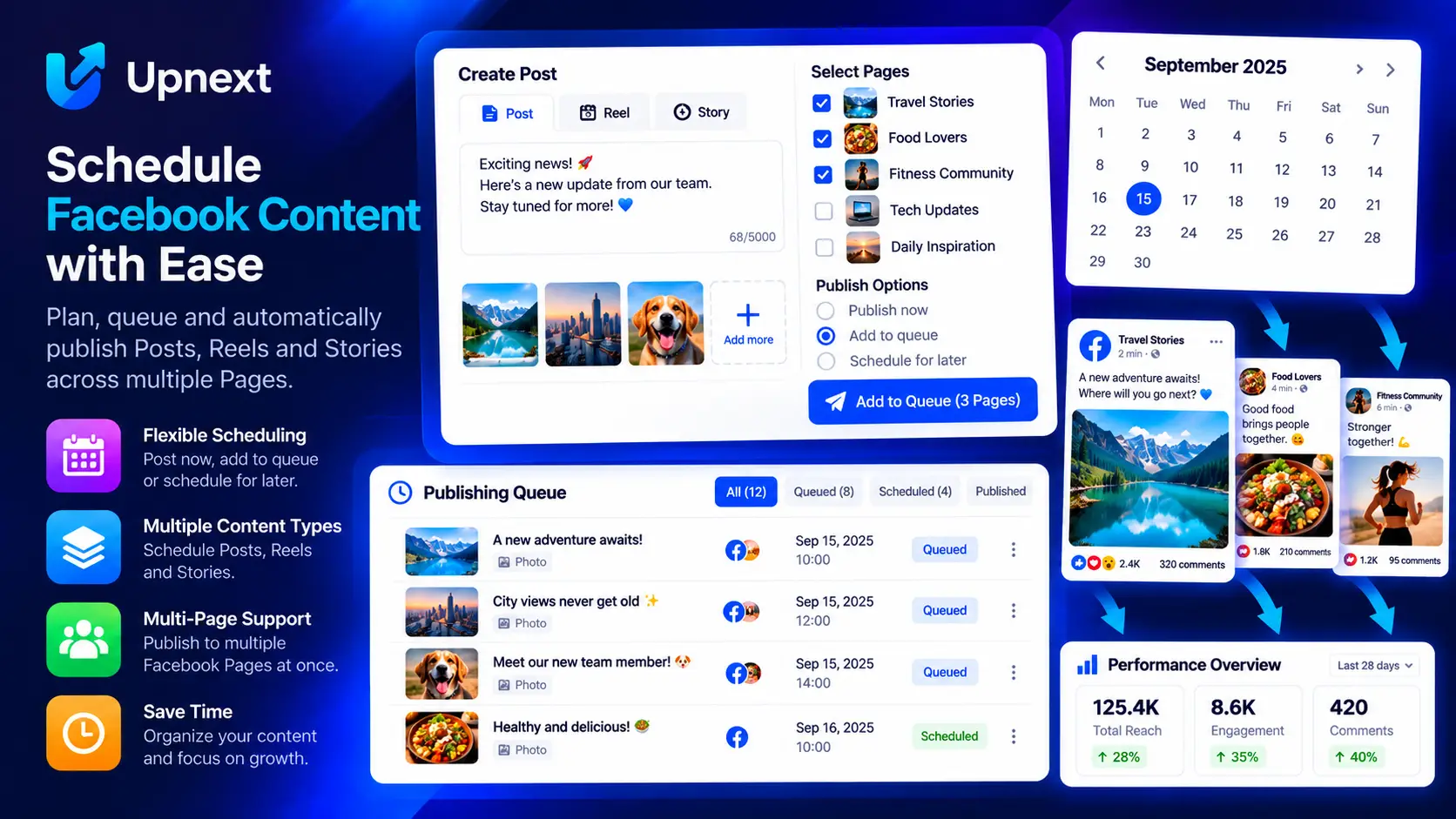
Built around the Facebook workflow you actually need
Use the calendar as a Facebook post planner for multiple Pages: map upcoming content, spot gaps, then move from planning into publishing without repetitive Page-by-Page work.
Week and Month views
Switch between a focused weekly plan and a broader monthly view without leaving your Facebook publishing workspace.
Scheduled, published and deleted content
Keep the publishing history visible. Deleted scheduled publications remain identifiable as Deleted instead of silently disappearing from the plan.
Filter by Page and content type
Narrow the calendar to a specific Facebook Page or to Posts, Reels or Stories when you need a cleaner operational view.
Create from the date you are planning
Use the + action on an available day to start a new Post, Reel or Story with the selected date carried into the creation workflow.
Move from planning to scheduling
Choose Publish Now when appropriate or schedule future content from the same workflow instead of maintaining a separate planning sheet.
Built for multi-Page operations
Use the calendar as the visual layer above Upnext publishing, scheduling, queue and multi-Page distribution workflows.
Use one Facebook post planner across multiple Pages
A Facebook post planner is most useful when the plan stays connected to the publishing workflow. Upnext lets operators review upcoming Posts, Reels and Stories by Week or Month, filter the calendar by Page and content type, and create the next publication from the date being planned.
Upnext is a Facebook publishing and traffic workspace for professionals managing content across Pages. This feature connects directly to publishing, scheduling, Page selection and content management instead of living in a separate planning tool.
Continue with Facebook Content Calendar, Text Post Scheduler, Facebook Background Posts, Multi-Page Publishing and the main Facebook Post Scheduler.
Why this workflow matters
Small publishing details become expensive when they have to be repeated across many Pages. Upnext keeps the creation step simple while preserving the operational controls needed for multi-Page publishing.
Frequently asked questions
Does the Upnext calendar show scheduled Facebook posts?
Yes. Scheduled publications appear in the visual calendar with their date, time and status.
Can I use Week and Month views?
Yes. The Content Calendar supports both Week and Month views.
Does it show published content too?
Yes. Published content remains visible, and deleted scheduled publications can also appear as Deleted.
Can I create content from the calendar?
Yes. Start a Post, Reel or Story from a calendar date and continue into the composer.
Can I filter the calendar by Facebook Page?
Yes. You can filter by Page and by content type.
Can I use Upnext as a Facebook post planner for multiple Pages?
Yes. Use Week or Month view to review upcoming content across Pages, filter the plan, spot open dates and start a Post, Reel or Story from the calendar before completing its publishing details in the composer.
Use the calendar to answer a publishing question
Choose Week to inspect upcoming work closely or Month to look for gaps across a broader period. Filter by Page and format before deciding what to add.
A scheduled item, a published item and a deleted scheduled item represent different states. Check the item’s details rather than assuming a calendar entry proves successful Facebook delivery.
Plan from the date, confirm in the composer
Start a publication from an available date using the + action. Complete the content, select the Pages and confirm the exact time in the composer. Return to the calendar to review the saved plan.
This is Upnext’s working calendar, rather than a downloadable spreadsheet template. Read the calendar guide for a practical weekly review.
Try it in your Facebook workflow
Create, schedule and manage Facebook content from one workspace built around Pages and traffic operations.
Start free