

How to Bulk Schedule Facebook Posts from CSV
When you have dozens of Facebook publications to prepare, creating and scheduling them one by one becomes the bottleneck. A CSV workflow lets you organize content in a spreadsheet, import it in bulk, review the schedule and move a large publishing batch into your workflow at once.
Prepare your Facebook content in a spreadsheet, export it as CSV, import the file, preview the rows, then send the batch to a queue or schedule. In Upnext, one CSV row becomes one Post, Reel or Story; imports support up to 100 rows, individual Pages or Page Groups, spacing between Page deliveries, first-comment data, publishing-domain selection, click tracking and optional dynamic UTM settings. See the Facebook Bulk Upload workflow.
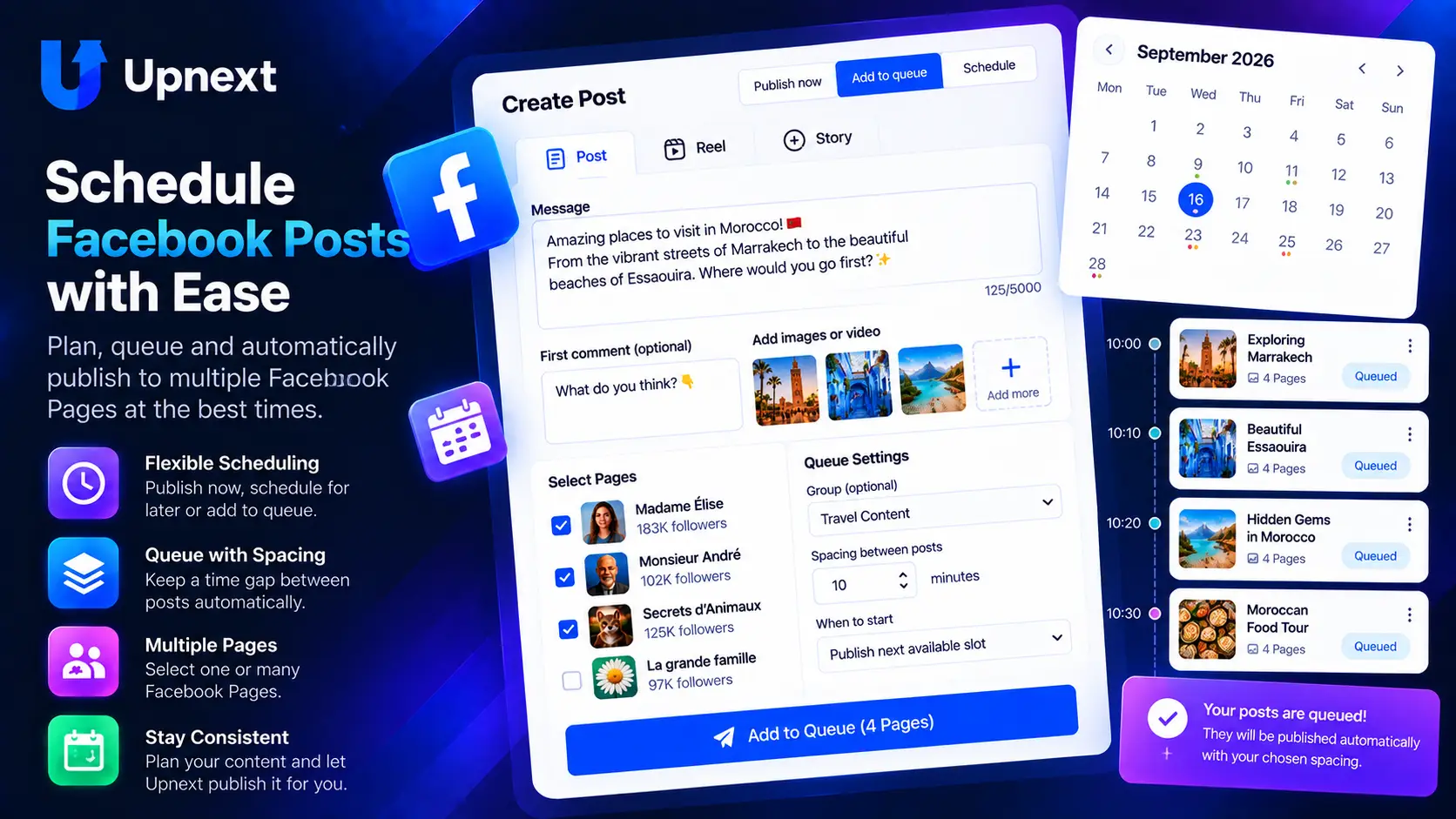
Bulk upload and bulk scheduling are not exactly the same thing
The terms are often used together, but they describe two different parts of the workflow. Understanding the difference makes it easier to choose the right setup.
| Workflow | What it does | Main benefit |
|---|---|---|
| Bulk upload | Imports many content items from a file such as CSV. | Avoid creating every publication manually. |
| Bulk scheduling | Assigns publishing dates and times to multiple imported items. | Build a future content schedule faster. |
| Multi-Page publishing | Controls which Facebook Pages receive the content. | Manage distribution across several Pages. |
A useful Facebook CSV scheduler therefore needs more than a file uploader. The important workflow is what happens after import: validating the content, deciding where it should publish, controlling timing and reviewing the batch before it goes live.
How to prepare a CSV for Facebook bulk scheduling
Start with a spreadsheet rather than building the CSV manually. Each row should represent a publication, while columns contain the information your publishing workflow needs.
1. Keep one publication per row
This makes the file easier to review and prevents unrelated content from being mixed together. Your rows can represent the Posts, Reels or Stories you plan to import.
2. Keep captions and destination information organized
Separate the content fields you need rather than putting an entire publishing instruction into one cell. If a publication sends traffic to a website, keep the destination URL consistent and add UTM parameters when you need campaign attribution in your website analytics.
3. Prepare media references carefully
Images and videos need to match the content type you intend to publish. A Reel, Story and standard Facebook Post do not necessarily use media in the same way, so review the batch before import instead of assuming every row is interchangeable.
4. Check dates and times before importing
Scheduling mistakes multiply quickly in a large batch. Use a consistent date and time format, verify your intended publishing timezone, and scan the schedule for duplicates or accidental overlaps.
The exact CSV columns depend on the tool you use. Always follow the import template expected by that platform rather than assuming that one universal Facebook CSV format exists.
How to bulk schedule Facebook content with Upnext
Upnext connects bulk importing to the wider Facebook publishing operation rather than treating CSV as a separate utility.
Prepare the publishing batch
Organize the content you want to publish in your CSV file and make sure the required content information is present.
Import the CSV
Use Upnext Bulk Import to bring multiple content items into the publishing workflow instead of recreating them one at a time.
Work with Posts, Reels and Stories
Bulk Import supports Facebook Posts, Reels and Stories, including video Stories, so the workflow is not limited to standard feed posts.
Review the imported content
Check captions, media, destinations and scheduling information before moving the batch forward.
Control Pages and timing
Bring the imported content into Upnext's multi-Page publishing and scheduling workflow so distribution and timing stay connected.
Publish and measure the result
Once content is live, use the wider Upnext workflow to manage publications and track Facebook traffic when your posts are designed to send visitors to a website.
How to bulk schedule Facebook posts across multiple Pages
Bulk scheduling becomes especially valuable when the operation includes several Facebook Pages. The problem is no longer just “How do I import 50 posts?” It becomes “How do I control a large batch across the right Pages and publishing times?”
Upnext is built around that broader workflow. After content enters the system, Facebook Multi-Page Publishing lets you manage distribution across connected Pages rather than repeating the same manual publishing process Page by Page.
This separation is useful: the CSV organizes the content batch, while the publishing workflow controls where and when that content is delivered.
CSV = content preparation. Multi-Page publishing = distribution. Scheduling = timing. Traffic tracking = measurement.
Can you bulk schedule Facebook Reels and Stories from CSV?
Do not assume that every Facebook bulk scheduler supports every content format. Many CSV workflows are primarily designed around standard posts, and support varies by platform.
In Upnext, Bulk Import currently supports Posts, Reels and Stories, including video Stories. That matters when your Facebook operation uses several formats and you want the import process to feed the same publishing workspace.
If Stories are an important part of your workflow, see Facebook Story Publisher & Scheduler. For Reels, see the Facebook Reel Scheduler.
Common bulk scheduling mistakes to avoid
- Importing before reviewing the spreadsheet. One wrong column or repeated value can affect an entire batch.
- Confusing upload with scheduling. Successfully importing content does not necessarily mean the publishing times are correct.
- Ignoring the destination Page. In a multi-Page operation, content and timing are only part of the decision; distribution matters too.
- Using inconsistent URLs. If website traffic matters, prepare links and campaign parameters consistently before the batch goes live.
- Publishing a large batch without a final review. Bulk tools save repetitive work, but they make pre-publish validation more important, not less.
Build the full Facebook publishing workflow
Bulk scheduling is most useful when it connects to what happens before and after publication. These Upnext workflows cover the surrounding jobs.
Facebook bulk scheduling FAQ
Can you bulk schedule Facebook posts from a CSV file?
Yes, when the publishing tool supports CSV import and scheduling. The general workflow is spreadsheet → CSV → import → review → schedule. The exact required columns and import rules depend on the tool.
What is the difference between bulk upload and bulk scheduling?
Bulk upload imports many content items at once. Bulk scheduling adds or manages future publishing times for those items. A tool may support one or both parts of the workflow.
Can Upnext bulk import Facebook Reels and Stories?
Yes. Upnext Bulk Import supports Posts, Reels and Stories, including video Stories.
Can I bulk schedule content for multiple Facebook Pages?
Upnext combines Bulk Import with its multi-Page publishing workflow, so imported content can be managed as part of a publishing operation across connected Facebook Pages.
Should I use UTM parameters with bulk scheduled Facebook posts?
If your goal is website traffic attribution, UTMs can label source, campaign and content information for your analytics platform. They complement publishing-level link tracking rather than replacing it.
Prepare a worksheet, then use the importer’s required format
Use the Facebook publishing planning worksheet to organize your content before import. It includes a caption, intended Pages, media reference, destination, planned time and review status.
This worksheet is for preparation, not direct import. Map the reviewed content to the current CSV format accepted by Upnext’s importer. Do not rename columns by guesswork or assume a generic template matches the application.
Check a representative batch first
- Choose one example of each content type you intend to use.
- Check captions containing commas, quotation marks and line breaks.
- Verify that media references can be accessed by the publishing workflow.
- Confirm the importer’s date format, timezone and Page selection behavior.
- Review every imported item before scheduling a larger batch.
Keep a copy of the reviewed source sheet. If an import reports a problem, correct the affected row and check for existing publications before importing the same batch again.
Move your Facebook publishing batch out of the spreadsheet.
Import Posts, Reels and Stories from CSV, then bring the content into a multi-Page Facebook publishing workflow.
Try Upnext Free →Plan more than bulk imports
Use the Facebook Content Calendar to see what is scheduled, or create text-only Facebook posts for multiple Pages from the publishing workspace.