

Why posting to multiple Facebook Pages becomes a workflow problem
Publishing to one Facebook Page is simple. Publishing the same campaign to five, ten or twenty Pages is a different job. The content may be identical, but the operational work repeats: choose the Page, rebuild or paste the post, attach the media, set the publishing time, verify the destination and repeat.
The problem is not the post itself. It is the repetition around the post.
That repetition creates three common costs: time, inconsistency and loss of control. A caption can be missed on one Page. A schedule can be set incorrectly. One Page may be forgotten entirely. And when you are operating a real publishing calendar, even small repeated actions become expensive at scale.
This is why the best multi-Page workflow is not simply “copy the post faster.” It is to create once, select the destinations once, and control distribution from one place.
Three ways to publish the same content across multiple Facebook Pages
1. Publish manually, Page by Page
The most basic approach is to open each Facebook Page, recreate the post, and publish or schedule it individually. This gives you direct Page-level control and may be enough when you manage only one or two Pages or when every Page receives different content.
The limitation is obvious: the work scales linearly. If a single post needs to go to eight Pages, you repeat most of the publishing workflow eight times.
2. Use a general social media scheduler
Many social scheduling platforms let you connect more than one Facebook Page. This can be a good fit when your primary need is a shared calendar across Facebook, Instagram, LinkedIn and other networks.
But if Facebook is a traffic or publishing channel rather than just another social profile, look carefully at the workflow details that matter after “schedule post”: multi-Page selection, Page-by-Page delivery controls, first comments, bulk import, link tracking, content history, cleanup and evergreen reuse.
3. Use a Facebook-focused multi-Page publishing workflow
This is the approach Upnext is built around. Instead of treating every Facebook Page as a separate publishing task, the publication becomes the central object: create the content, choose all destination Pages, choose timing, then let each Page publication be managed from the same workspace.
| Workflow | Manual Page-by-Page | Multi-Page Workspace |
|---|---|---|
| Create caption/media | Repeat for each Page | Create once |
| Select destinations | Switch Pages individually | Select multiple Pages |
| Publish now | Repeat per Page | One workflow |
| Schedule later | Set separately | Schedule from the same publication |
| Delivery spacing | Manual timing | Control spacing between Page publications |
| First comment | Extra follow-up work | Prepare it in the publishing workflow |
| Track results | Fragmented | Centralized Facebook traffic workflow |
One post. Multiple Facebook Pages. One publishing workflow.
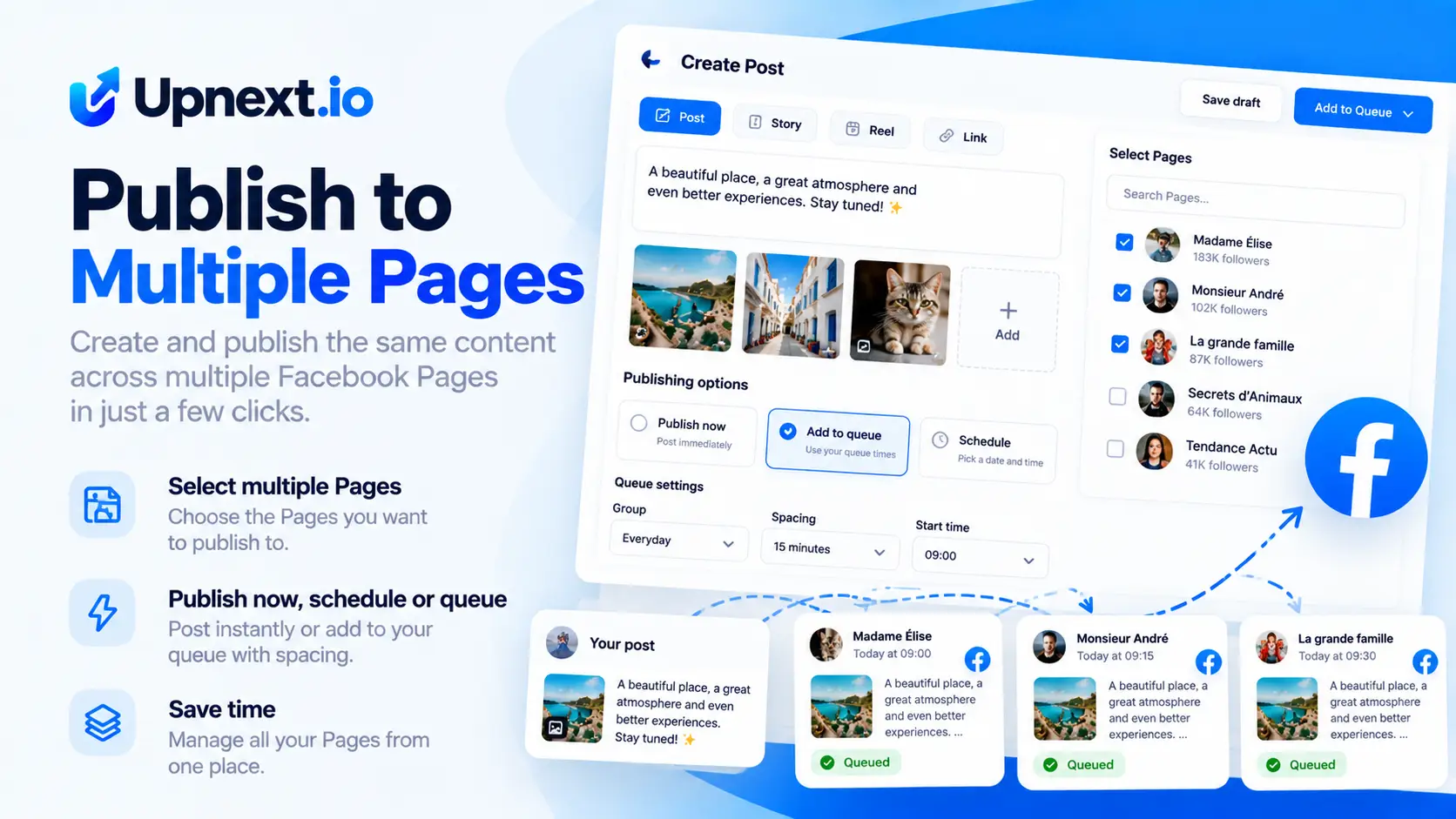
Upnext lets you create once, select multiple connected Pages, publish now or schedule for later, and control delivery without rebuilding the same post Page by Page.
See Multi-Page Publishing → Get Started FreeHow to post to multiple Facebook Pages at once with Upnext
The exact interface may evolve, but the publishing logic is deliberately simple. The goal is to reduce repeated Page-level work while keeping each Facebook publication visible and manageable.
Connect your Facebook Pages
Connect the Facebook Pages you manage to your Upnext workspace so they become available as publishing destinations.
Create the post once
Prepare the caption, link and media once instead of rebuilding the same publication separately for every Page.
Select multiple Facebook Pages
Choose all Pages that should receive the publication. You can use Page Groups when you repeatedly publish to the same set of Pages.
Publish now or schedule for later
Send the publication immediately or choose a future time. If you do not want every Page to receive it at the exact same moment, use Page-by-Page delivery spacing.
Add the first comment when needed
Prepare an eligible Facebook first comment in the same workflow instead of returning to each Page after publication.
Track every publication
After publishing, use your content history and Facebook traffic tracking workflow to see what actually produced clicks and what deserves to be reused.
Should you publish to every Facebook Page at the exact same time?
Not always. “Post to multiple Pages at once” describes one publishing action, but that does not mean every Page must receive the content in the same second.
If you manage several Pages, there are situations where you may prefer to distribute publications with a delay between them. A spacing control lets you prepare the campaign once while still staggering delivery Page by Page.
Upnext delivery spacing
You can select multiple Facebook Pages in one publication and use delivery spacing to avoid manually creating separate schedules for each Page. The result is one campaign workflow with controlled Page-level execution.
This is especially useful for operators who publish frequently and want the operational simplicity of multi-Page publishing without forcing every destination into one simultaneous timestamp.
Should every Facebook Page receive the exact same content?
No. Multi-Page publishing is most valuable when the same or closely related content belongs on several Pages, but it should not replace editorial judgment.
If two Pages serve different audiences, locations or brands, customize the content when the audience context requires it. If several Pages are part of the same publishing network, campaign or traffic operation, creating once and distributing to selected Pages can save substantial repeated work.
A useful rule is simple: centralize the workflow, not necessarily the message.
What if you already have dozens or hundreds of Facebook posts ready?
Creating one publication at a time is still not ideal when you already have a large campaign prepared in a spreadsheet. In that case, use a bulk Facebook post upload workflow instead.
Upnext supports CSV import for Facebook Posts, Reels and Stories. That lets you prepare content in bulk, import it, and move it into the publishing workflow rather than manually recreating every item.
Multi-Page publishing solves repeated destinations. Bulk import solves repeated content entry. Together, they remove two different types of manual work.
If Facebook traffic matters, publishing is only half the workflow
A generic scheduler can tell you that content was published. A traffic-focused workflow needs to answer a harder question: which Page and which post actually sent visitors?
That is why Upnext connects publishing with Facebook link tracking and traffic analysis. After a campaign runs across multiple Pages, you can identify stronger publications instead of treating every Page as if it performed the same.
The useful loop becomes:
- Discover a content opportunity.
- Create the post.
- Distribute it across selected Facebook Pages.
- Control timing and first comments.
- Track clicks by publication.
- Find the winners.
- Reuse or recycle content that deserves another run.
This is the difference between simply scheduling Facebook posts and running a repeatable Facebook publishing operation.
When does a multi-Page Facebook publishing tool become worth using?
If you publish occasionally to one Page, it may not. Manual publishing is straightforward and there is little reason to add a new workflow.
The value changes when one or more of these are true:
- You manage several Facebook Pages.
- You repeatedly distribute the same campaign to more than one Page.
- You schedule content in advance.
- You add first comments or links after publishing.
- You need spacing between Page publications.
- You import content in bulk.
- You use Facebook to drive measurable website traffic.
- You need to clean, recycle or analyze content after it is published.
At that point, the question is no longer “Can I post to every Page manually?” You can. The question is whether repeating the same operational steps is still the best use of your time.
Built for people who actually operate Facebook Pages
Upnext began as an internal publishing workflow for managing Facebook traffic operations. The product is built around the repetitive problems that appear after you move beyond one Page and occasional posting.
Get Started Free → Explore Multi-Page PublishingFrequently asked questions
Can you post the same post to multiple Facebook Pages at once?
Yes. With Upnext, you can create one publication, select multiple connected Facebook Pages, and publish now or schedule for later from one workflow.
Can you schedule posts to multiple Facebook Pages?
Yes. Multi-Page selection works with scheduled publishing, so you do not need to rebuild the same scheduled post individually for each destination Page.
Can I stagger posts across multiple Facebook Pages?
Yes. Upnext includes Page-by-Page delivery spacing so a multi-Page publication can be distributed with controlled delays rather than forcing every Page to publish at the same moment.
Can I publish a first comment with my Facebook post?
Upnext supports preparing first comments for eligible Facebook publications. See the Facebook First Comment Scheduler page for the dedicated workflow.
Can I bulk upload Facebook posts from CSV?
Yes. Upnext supports CSV import for Posts, Reels and Stories. This is useful when your problem is not only publishing to several Pages but also loading a large volume of content efficiently.
Can I track which Facebook Page sends the most traffic?
Upnext is designed to connect publishing with traffic tracking so you can analyze clicks at Page and publication level rather than looking only at publishing status.